> For the complete documentation index, see [llms.txt](https://quote-guide.storeify.app/llms.txt). Markdown versions of documentation pages are available by appending `.md` to page URLs; this page is available as [Markdown](https://quote-guide.storeify.app/smtp.md).
# SMTP
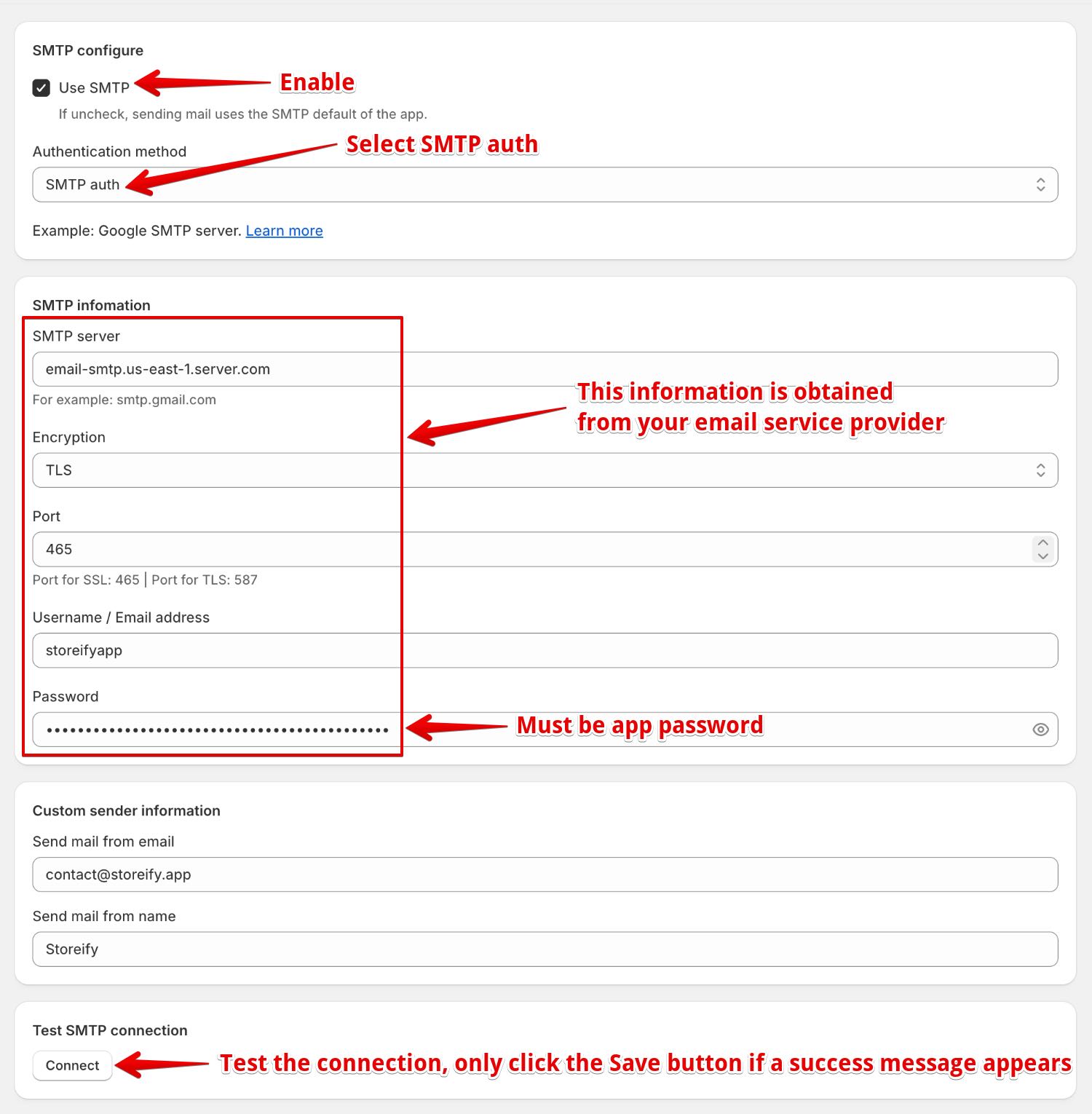
At this menu, you can configure your own email server service. In some cases, when you use the application's email server, emails sent to you or your customers may end up in the spam box. To prevent this, you should use your own email server and see the provider's parameters to fill in this section.
**Currently, most email services have upgraded their authentication methods, so use the latest authentication method if possible (commonly known as OAuth 2.0)**.
### 1. Use SMTP authenticate
In this guide, we will guide you to set up SMTP with Gmail (if you use another email service, the setup is similar, just the parameters, you can get these parameters from the email service provider or search on Google).
**Important:** To create an app password, you need 2-Step Verification on your Google Account.
If you use 2-Step-Verification and get a "password incorrect" error when you sign in, you can try to use an app password.
1. Go to your [Google Account](https://myaccount.google.com/).
2. Select **Security**
3. Under "Signing in to Google," select **2-Step Verification**.
4. At the bottom of the page, select **App passwords**.
5. Enter a name that helps you remember where you’ll use the app password.
6. Select **Generate**.
7. To enter the app password, follow the instructions on your screen. The app password is the 16-character code that generates on your device.
8. Select **Done**.
**Final**: Go to the app admin -> Settings -> SMTP and put your Gmail SMTP information
### 2. Use OAuth 2.0
This guide covers how to configure SMTP with OAuth 2.0 for three email providers: **Google (Gmail)**, **Microsoft Personal (Outlook.com / Hotmail)**, and **Microsoft 365 Business**.
***
### **Prerequisites**
* In your app's SMTP settings, set **Authentication method** to **OAuth 2.0**.
* Note down your app's **Redirect URI** (shown in the app settings page) — you will need it when registering your OAuth app. It looks like: [https://quote.storeify.app/oauth/callback](< https://quote.storeify.app/oauth/callback >) (**IMPORTANT**)
***
### **1. Google (Gmail)**
#### **Step 1 — Create a Google Cloud Project**
1. Go to Google Cloud Console.
2. Click the project dropdown at the top → **New Project**.
3. Enter a project name (e.g., "SMTP OAuth") → **Create**.
4. Make sure the new project is selected.
#### **Step 2 — Enable the Gmail API**
1. Go to **APIs & Services** → **Library**.
2. Search for **Gmail API** → click it → **Enable**.
#### **Step 3 — Configure OAuth Consent Screen**
1. Go to **APIs & Services** → **OAuth consent screen**.
2. Choose **External** → **Create**.
3. Fill in the required fields:
* **App name**: any name (e.g., "SMTP OAuth")
* **User support email**: your email
* **Developer contact email**: your email
4. Click **Save and Continue** through the remaining steps.
5. Under **Test users**, add the Gmail address you plan to use for sending emails.
#### **Step 4 — Create OAuth 2.0 Credentials**
1. Go to **APIs & Services** → **Credentials**.
2. Click **+ CREATE CREDENTIALS** → **OAuth client ID**.
3. **Application type**: select **Web application**.
4. **Name**: any name.
5. Under **Authorized redirect URIs**, click **+ ADD URI** and paste your app's redirect URI: [https://quote.storeify.app/oauth/callback](< https://quote.storeify.app/oauth/callback >) (**IMPORTANT**)
6. Click **Create**.
7. Copy the **Client ID** and **Client Secret**.
#### **Step 5 — Configure in App**
1. Select provider: **Google**.
2. Paste the **Client ID** and **Client Secret**.
3. Enter the **Email** address (must be the same Gmail you added as a test user).
4. Click **Save**, then click **Connect with your email above**.
5. Sign in with the same Gmail account and grant permission.
> **Note****:** While the app is in "Testing" status in Google Cloud, the OAuth token expires every 7 days and users have to reconnect. To avoid this, submit the app for verification in Google Cloud Console → OAuth consent screen → **Publish App**.
***
### **2. Microsoft Personal (Outlook.com / Hotmail)**
Use this option if you want to send emails from a **personal** Microsoft account (e.g., `yourname@outlook.com`, `yourname@hotmail.com`, `yourname@live.com`).
#### **Step 1 — Register an App in Azure**
1. Go to Azure Portal — App registrations.
2. Click **+ New registration**.
3. Fill in:
* **Name**: any name (e.g., "SMTP OAuth")
* **Supported account types**: select **Personal Microsoft accounts only**
* **Redirect URI**: select **Web**, then paste your redirect URI: [https://quote.storeify.app/oauth/callback](< https://quote.storeify.app/oauth/callback >) (**IMPORTANT**)
4. Click **Register**.
5. On the app's **Overview** page, copy the **Application (client) ID**.
#### **Step 2 — Create a Client Secret**
1. Go to **Certificates & secrets** → **Client secrets** tab.
2. Click **+ New client secret**.
3. Enter a description and select an expiry period.
4. Click **Add**.
5. **Immediately** copy the **Value** (this is your Client Secret — it will not be shown again).
#### **Step 3 — Configure API Permissions**
1. Go to **API permissions**.
2. Click **+ Add a permission** → **APIs my organization uses** tab → search for **Office 365 Exchange Online** (or select from Microsoft APIs → **SMTP**).
* If Office 365 Exchange Online is not available for personal accounts, you can skip this — the default permission with the scope `SMTP.Send` requested during OAuth login is sufficient.
3. Make sure the app has the `SMTP.Send` permission.
#### **Step 4 — Enable SMTP for Your Mailbox**
For personal Outlook.com / Hotmail accounts, SMTP is usually enabled by default. If it's not working:
1. Go to Outlook.com → **Settings** (gear icon) → **View all Outlook settings**.
2. Go to **Mail** → **Sync email**.
3. Under **POP and IMAP**, make sure **Let devices and apps use POP** or **IMAP** is enabled (this also enables SMTP AUTH).
#### **Step 5 — Configure in App**
1. Select provider: **Microsoft Personal (Outlook.com / Hotmail)**.
2. Paste the **Client ID** and **Client Secret**.
3. Enter the **Email** address (your Outlook.com / Hotmail / Live.com address).
4. **Tenant ID** is NOT required for personal accounts.
5. Click **Save**, then click **Connect with your email above**.
6. Sign in with the same Microsoft personal account and grant permission.
> **Important****:** The "From" email address **must match** the Microsoft account you authenticated with. Sending from a different address will cause emails to be rejected or go to spam.
***
### **3. Microsoft 365 Business**
Use this option if you want to send emails from a **work or school** Microsoft 365 account (e.g., `yourname@yourcompany.com`).
#### **Step 1 — Register an App in Azure**
1. Go to Azure Portal — App registrations.
2. Click **+ New registration**.
3. Fill in:
* **Name**: any name (e.g., "SMTP OAuth Business")
* **Supported account types**: select one of:
* **Accounts in this organizational directory only** — if only your organization will use it
* **Accounts in any organizational directory** — if multiple organizations may use it
* **Redirect URI**: select **Web**, then paste your redirect URI: [https://quote.storeify.app/oauth/callback](< https://quote.storeify.app/oauth/callback >) (**IMPORTANT**)
4. Click **Register**.
5. On the app's **Overview** page, copy the **Application (client) ID** and **Directory (tenant) ID**.
#### **Step 2 — Create a Client Secret**
1. Go to **Certificates & secrets** → **Client secrets** tab.
2. Click **+ New client secret**.
3. Enter a description and select an expiry period.
4. Click **Add**.
5. **Immediately** copy the **Value** (this is your Client Secret).
#### **Step 3 — Configure API Permissions**
1. Go to **API permissions**.
2. Click **+ Add a permission** → **Microsoft APIs** → **Microsoft Graph**.
3. Select **Delegated permissions**.
4. Search and add: **SMTP.Send**, and **offline\_access**.
5. Click **Add permissions**.
6. If you have admin access, click **Grant admin consent for \[Your Organization]** (recommended but not always required).
#### **Step 4 — Enable SMTP AUTH for the Mailbox**
Microsoft 365 Business often has SMTP AUTH **disabled** by default. An admin must enable it:
**Option A — Microsoft 365 Admin Center:**
1. Go to Microsoft 365 Admin Center.
2. Go to **Users** → **Active users** → select the user.
3. Go to **Mail** tab → **Email apps**.
4. Check **Authenticated SMTP** → **Save**.
**Option B — PowerShell:**
Set-CASMailbox -Identity "" -SmtpClientAuthenticationDisabled $false
#### **Step 5 — Configure in App**
1. Select provider: **Microsoft 365 Business**.
2. Paste the **Client ID** and **Client Secret**.
3. Enter the **Tenant ID** (Directory ID from Step 1).
4. Enter the **Email** address (your Microsoft 365 work email).
5. Click **Save**, then click **Connect with your email above**.
6. Sign in with the same Microsoft 365 work account and grant permission.
> **Important****:** If your organization uses Conditional Access policies, you may need an admin to whitelist this app or allow SMTP AUTH for the specific mailbox.
***
### **Which Provider Should I Choose?**
| Feature | Google (Gmail) | Microsoft Personal | Microsoft 365 Business |
| ------------------------------ | --------------- | ------------------------------------- | -------------------------------------- |
| **Email address** | @gmail.com | @outlook.com, @hotmail.com, @live.com | @yourcompany.com (custom domain) |
| **Account type** | Personal Google | Personal Microsoft | Work / School Microsoft |
| **Tenant ID needed** | No | No | Yes |
| **Daily send limit** | \~500 emails | \~300 emails | \~10,000 emails |
| **Azure account type setting** | — | "Personal Microsoft accounts only" | "Accounts in organizational directory" |
| **SMTP Host** | smtp.gmail.com | smtp-mail.outlook.com | smtp.office365.com |
***
### **Troubleshooting**
| Error | Cause | Fix |
| ------------------------------------------------------------------------ | --------------------------------------------------------------------------------------------------------------- | ------------------------------------------------------------------------------------------------------------------------------ |
| **AADSTS9002346** — "configured for use by Microsoft Account users only" | You selected **Microsoft 365 Business** but the Azure app is registered with "Personal Microsoft accounts only" | Go to Azure Portal → App registration → Authentication → change **Supported account types** to include organizational accounts |
| **AADSTS50020** — "not in the tenant" | The email account doesn't belong to the tenant specified | Check Tenant ID is correct, or the user account belongs to that organization |
| **Connection failed** with no error | Missing Client Secret, wrong redirect URI, or wrong Client ID | Double-check all credentials |
| **Emails going to spam** | The "From" email doesn't match the authenticated email | Make sure the email field matches the account you sign in with |
| **Token expired** | Google test mode tokens expire after 7 days. Microsoft tokens are typically longer. | For Google: publish your OAuth app. For Microsoft: reconnect when prompted |
| **SmtpClientAuthenticationDisabled** | SMTP AUTH is disabled for the M365 mailbox | Admin must enable SMTP AUTH in Microsoft 365 Admin Center |